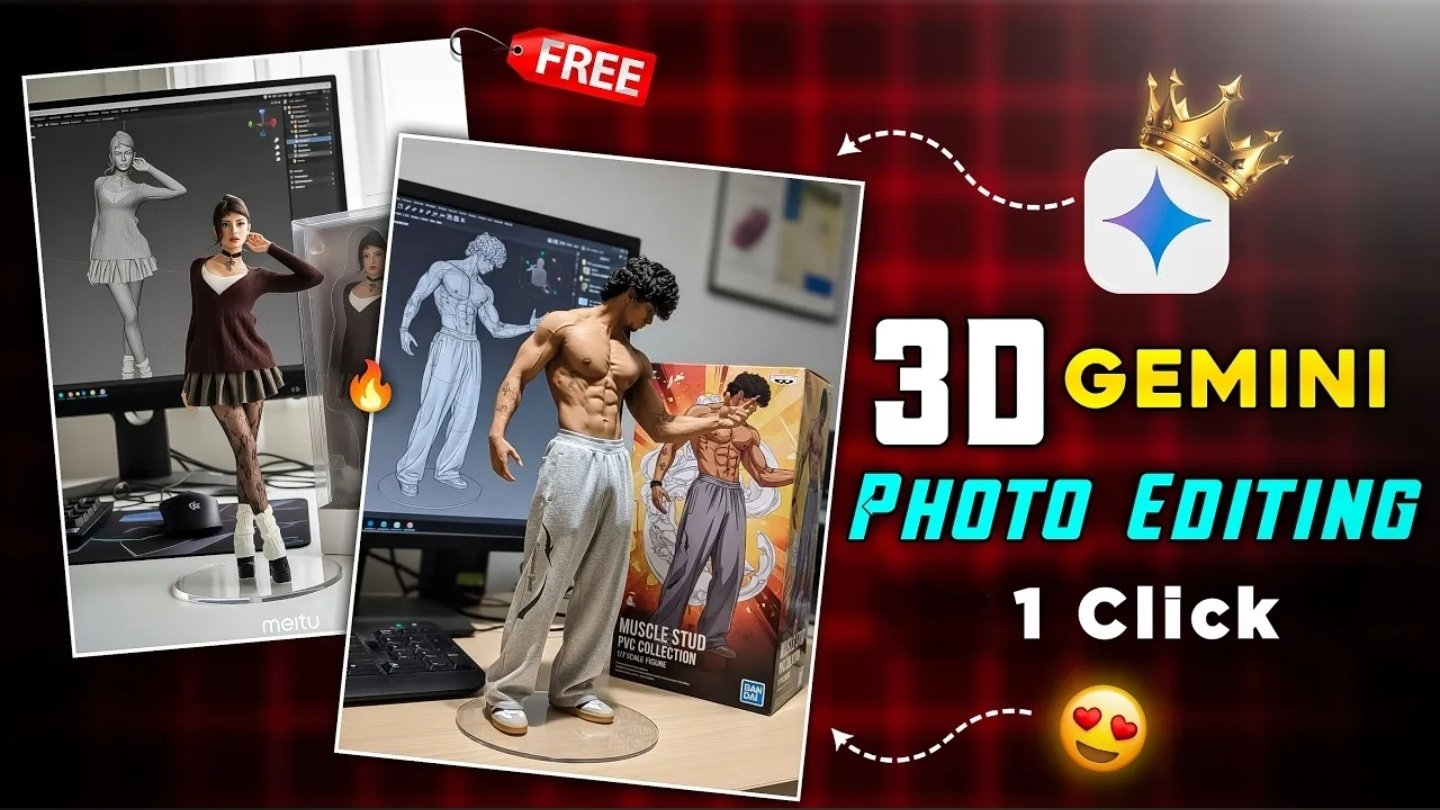
Trending 3D Toy Photo Editing
Instagram Trending 3D Toy Photo Editing In 2025, a popular trend on Instagram involved using Google Gemini or comparable AI tools to transform regular photos into remarkably realistic, collectible-style 3D figurine images.
These edits have gained significant popularity on social media due to their lifelike appearance and toy-like presentation.
Let’s explore the process behind the 3D AI Photo Editing trend.
The Gemini 2.5 Flash Image Tool, also known as Nano Banana, enables users to upload a selfie or portrait and provide a detailed prompt to generate photorealistic, 3D-style figurine renderings.
Users input a custom prompt that describes the desired figurine scene, for example, “create a 1/6 scale commercialized figurine of the character in the photo, placed on a transparent acrylic base, with a Bandai-style toy box and ZBrush model display.” This prompt guides the AI in creating realistic images.
The resulting output resembles a professional action figure mockup, complete with packaging, digital sculpting on-screen, and sometimes custom branding.
It’s important to note that no physical 3D modeling or printing is necessary; the outcome is a stylized 2D image, ideal for platforms like Instagram reels and profile photos.
Here’s a step-by-step guide:
First, access the Gemini AI platform.
Then, open the Gemini 2.5 Flash Image tool or a similar website or application (search for “Nano Banana Gemini image generator”).
Finally, sign in with a Google account if requested.
To ensure the best results, please upload a high-resolution, well-lit selfie, as these are ideal for capturing intricate details.
Kindly provide your prompt, such as:
text
Create a 1/6 scale commercialized figurine of the character in the photo, realistic style, on a computer desk. The figurine has a round transparent acrylic base (no text), with ZBrush modeling process on the screen, Bandai-style toy packaging box printed with the original artwork next to it, packaging features two-dimensional flat illustrations.
Once you have done so, please click “Generate” and allow some time for your 3D figurine-style image to be created.
Feel free to share the edited image on Instagram, perhaps as a profile photo, Reel, or story, to maximize engagement.
For additional guidance, you might find helpful tutorials that demonstrate how to animate these photos into short videos using applications like YouCam Video or other editing software, which can add movement or effects to your 3D persona for Instagram reels.
Furthermore, Telegram and YouTube channels frequently offer ready-to-use prompts or detailed instructions related to this trend.
The primary attraction lies in its toy-like aesthetic, featuring realistic shadowing, acrylic bases, appealing packaging graphics, and digital sculpting effects.
These edits are favored by photographers, content creators, and individuals seeking to distinguish themselves with a futuristic selfie.
This method necessitates no prior editing expertise, only a well-crafted prompt and a clear photograph, with tools like Google Gemini or comparable AI solutions handling the remaining aspects.
The process of transforming a photograph into a 3D AI figure involves several steps: preparing a high-quality image, uploading it to an AI platform like Gemini, and utilizing a detailed prompt to create a realistic figurine render. This method is user-friendly and does not necessitate expertise in manual 3D modeling.
Here is the suggested workflow:
1. Prepare Your Photo
It is recommended to use a high-resolution, well-lit image that clearly displays the subject, whether a headshot or a full-body shot.
It is also advisable to remove any distracting backgrounds and ensure the main subject is centered within the frame for optimal results.
2. Access the AI Platform
You may open the Gemini 2.5 Flash Image tool (Nano Banana) or other recommended 3D image generators, such as 3D AI Studio or Meshy.ai.
You may need to log in or sign up for the service if required.
3. Upload Your Photo
Select and upload your prepared image in either JPG or PNG format to the platform.
It is important to ensure compatibility and good quality for the best model generation.
4. Input a Detailed Prompt
You can paste a custom prompt that describes the style, environment, and features of the figurine (for example, “Create a 1/7 scale commercialized figure of the character, placed on a computer desk, with a Bandai-style toy box”).
Prompt formulas designed for “lookalike” figures can produce realistic and collectible results.
To create a 3D figure image, please follow these steps:
First, initiate the process by clicking on either “Generate” or “Convert to 3D,” allowing the AI to interpret your prompt.
The system will then require a brief waiting period, ranging from a few seconds to several minutes, while it generates a photorealistic, 3D-style figurine.
Subsequently, you can review and refine the image, if the platform provides such options, by previewing the generated model or image.
Some platforms offer features to rotate the image, adjust settings, or refine mesh details.
Finally, you can save or export the 3D render, or export the model in common formats such as OBJ, STL, or GLB, which are suitable for digital applications or 3D printing.
As an optional step, for video versions, platforms like Veo may allow you to create animated clips using simple commands, such as “figure rotating on a display,” to showcase your new 3D figure.
This workflow necessitates only fundamental image preparation and a well-crafted prompt, as the AI tools handle the conversion and rendering, producing impressive figurine-style results that are ideal for social media or personal use.
The Retopology Workflow
First, import the AI-generated mesh into software such as Blender or ZBrush. These models frequently possess a high polygon count and disorganized geometry, which may not be suitable for animation or texturing.
For automatic retopology, consider utilizing free tools like Instant Meshes or Blender’s Remesh modifier. Export the mesh from your generator, load it into Instant Meshes, set the desired vertex count for a lower-poly version, and save the resulting mesh.
Alternatively, for manual refinement, within Blender, you can further refine the geometry by manually creating edge loops and quad draws as needed to ensure proper animation or subdivision.
It is essential to perform a geometry check to ensure the flow of polygons is appropriate for limbs and heads, minimizing triangles and poles for smoother deformation.
The UV Unwrapping Process
To begin, UV unwrap the optimized mesh. In Blender, enter Edit Mode, select all faces, and choose Smart UV Project or manually mark seams to create clean and logical UV islands.
Subsequently, in the UV editor, pack the islands efficiently, increase margins or island padding to prevent texture bleeding, and optimize for PBR texturing.